How To Blur Faces in Videos Using a Jupyter Notebook on Podstack
Anonymise faces in 550 videos with MTCNN and OpenCV on a Podstack GPU pod. This Jupyter notebook tutorial streams WebVid-10M, detects every face, applies Gaussian blur, and zips the output — 171,480 faces processed in ~92 minutes.
Introduction
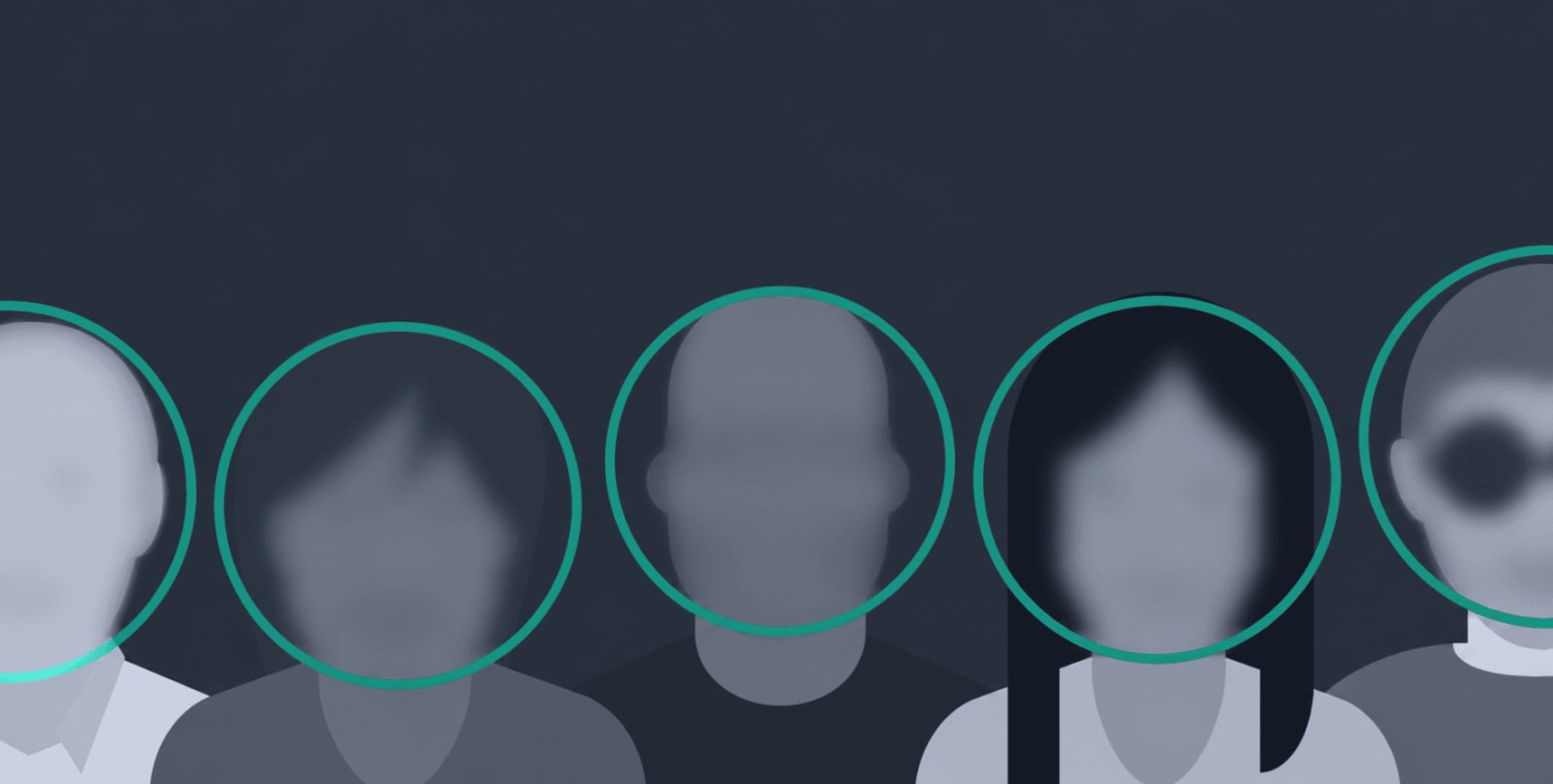
When building video datasets that contain real people - such as stock footage, surveillance clips, or user-generated content - protecting the privacy of individuals is critical. Faces must be anonymised before any dataset can be responsibly published or shared.
In this tutorial, you will walk through a Jupyter notebook - faceblur_opencv.ipynb (GITHUB LINK TO REPOSITORY) - that runs entirely on Podstack.ai using the PyTorch CUDA 12 + OpenCV template. The notebook is organised into self-contained cells, each building on the last. By the time you reach the final cell, it will have:
- Streamed and filtered the WebVid-10M dataset to find videos containing people
- Downloaded those videos using Python's
requestslibrary - Verified each file is readable with OpenCV
- Detected every face in every frame using MTCNN (Multi-task Cascaded Convolutional Networks) on GPU
- Blurred each detected face using OpenCV's Gaussian blur
- Written the anonymised frames to new video files
- Archived everything into a single zip for download
The notebook produced these results on a single Podstack GPU pod: 550 videos processed, 256,326 frames read, 171,480 faces blurred - in approximately 92 minutes.
Prerequisites
Before you begin, you will need:
- A Podstack.ai account - sign up and claim your joining bonus to receive free GPU credits
- A pod launched from the PyTorch CUDA 12 + OpenCV template, which comes with
torch,torchvision,opencv-python, and CUDA 12 pre-installed - The notebook file
faceblur_opencv.ipynb, which you can upload directly to your pod's Jupyter environment
The following additional packages are installed inside the notebook itself in the first cell, so no manual setup is required:
datasets- for streaming WebVid-10M from Hugging Facerequests- for downloading video filesfacenet-pytorch- for MTCNN face detectiontqdm- for progress tracking
Step 1 - Launching Your Podstack Pod and Opening the Notebook
Log in to Podstack.ai and click New Pod. From the template gallery, select the PyTorch CUDA 12 + OpenCV template. This template ships with:
- Python 3.10
- PyTorch with CUDA 12 support
- OpenCV pre-built with video codec support
- JupyterLab accessible directly from your browser
Once your pod is running, click Open JupyterLab from the pod dashboard. In the JupyterLab file browser, upload faceblur_opencv.ipynb using the upload button, then double-click it to open it.
Note: The Podstack PyTorch CUDA 12 + OpenCV template pre-configures all CUDA environment variables. You do not need to set CUDA_HOME or install GPU drivers manually - the pod handles this for you.Step 2 - Cell 1: Exploring the Dataset
The first cell loads the WebVid-10M dataset in streaming mode and prints the very first entry to confirm the connection is working.
from datasets import load_dataset

ds = load_dataset(
    "TempoFunk/webvid-10M",
    split="train",
    streaming=True
)

sample = next(iter(ds))

print(sample)
Cell output:
{'videoid': 21179416, 'contentUrl': 'https://ak.picdn.net/shutterstock/videos/21179416/preview/stock-footage-aerial-shot-winter-forest.mp4', 'duration': 'PT00H00M11S', 'page_dir': '006001_006050', 'name': 'Aerial shot winter forest'}The dataset is loaded in streaming mode - no data is cached locally. The next(iter(ds)) call fetches only the first entry over the network, confirming the dataset is accessible without downloading all 10 million records.
Note:streaming=Truemeans eachnext()call fetches one entry from the Hugging Face servers in real time. This is ideal for large datasets where you only need a subset.
Step 3 - Cell 2: Filtering for Videos That Contain People
The second cell adds a keyword filter on the video caption (name field) to find clips likely to contain human faces. Only videos whose captions include words like "woman", "man", "person", or "face" are kept.
human_keywords = [
    "man", "woman", "person",
    "girl", "boy", "face",
    "people", "human"
]

filtered = (
    x for x in ds
    if any(k in x["name"].lower() for k in human_keywords)
)

sample = next(filtered)

print(sample["name"])
print(sample)
Cell output:
Young beautiful woman using smartphone in cafe
{'videoid': 21157780, 'contentUrl': 'https://ak.picdn.net/shutterstock/videos/21157780/preview/stock-footage-young-beautiful-woman-using-smartphone-in-cafe.mp4', 'duration': 'PT00H00M09S', 'page_dir': '136051_136100', 'name': 'Young beautiful woman using smartphone in cafe'}
This keyword approach is a fast, cheap heuristic - it will not catch every video containing a face, but it dramatically narrows the candidate pool before any expensive GPU inference runs.
Step 4 - Cell 3: Downloading a Sample Video
The third cell downloads the filtered video using requests in streaming mode. Chunked downloading avoids loading the entire file into memory at once, which matters when working with many files.
import requests

video_url = "https://ak.picdn.net/shutterstock/videos/21157780/preview/stock-footage-young-beautiful-woman-using-smartphone-in-cafe.mp4"

response = requests.get(video_url, stream=True)

with open("sample.mp4", "wb") as f:
    for chunk in response.iter_content(chunk_size=8192):
        f.write(chunk)

print("download complete")
Cell output:
download completeStep 5 - Cell 4: Verifying the Video with OpenCV
Before committing GPU time to a file, this cell checks that OpenCV can open it and successfully read at least one frame. This guards against corrupt downloads and codec-incompatible files - both of which appear in real-world datasets.
import cv2

cap = cv2.VideoCapture("sample.mp4")

print("opened:", cap.isOpened())

ret, frame = cap.read()

print("frame read:", ret)

if ret:
    print("frame shape:", frame.shape)

cap.release()
Cell output:
opened: True
frame read: True
frame shape: (316, 600, 3)
The tuple (316, 600, 3) represents height, width, and the three BGR colour channels OpenCV uses by default. If opened returns False, the file is either missing, corrupt, or using an unsupported codec.
Step 6 - Cell 5: Running the Face Detection and Blur Loop
This is the core cell of the notebook. It processes every downloaded video file frame by frame - using MTCNN for face detection and OpenCV's Gaussian blur for anonymisation - then writes each modified frame to a new output file.
import cv2
import torch
from facenet_pytorch import MTCNN
import os
from tqdm import tqdm

device = "cuda" if torch.cuda.is_available() else "cpu"

mtcnn = MTCNN(keep_all=True, device=device)

input_dir = "videos"
output_dir = "blurred_videos"

os.makedirs(output_dir, exist_ok=True)

video_files = [
    f for f in os.listdir(input_dir)
    if f.endswith(".mp4")
]

total_frames = 0
total_faces = 0
processed_videos = 0
failed_videos = 0

for vf in tqdm(video_files):

    try:
        input_path = os.path.join(input_dir, vf)
        output_path = os.path.join(output_dir, vf)

        cap = cv2.VideoCapture(input_path)

        fps = int(cap.get(cv2.CAP_PROP_FPS))
        w   = int(cap.get(cv2.CAP_PROP_FRAME_WIDTH))
        h   = int(cap.get(cv2.CAP_PROP_FRAME_HEIGHT))

        out = cv2.VideoWriter(
            output_path,
            cv2.VideoWriter_fourcc(*'mp4v'),
            fps,
            (w, h)
        )

        while True:
            ret, frame = cap.read()

            if not ret:
                break

            total_frames += 1

            # MTCNN expects RGB; OpenCV reads BGR
            rgb = cv2.cvtColor(frame, cv2.COLOR_BGR2RGB)

            boxes, probs = mtcnn.detect(rgb)

            if boxes is not None:
                for box in boxes:
                    x1, y1, x2, y2 = map(int, box)

                    face = frame[y1:y2, x1:x2]

                    # Guard against out-of-frame bounding boxes
                    if face.size > 0:
                        blurred = cv2.GaussianBlur(face, (51, 51), 30)
                        frame[y1:y2, x1:x2] = blurred
                        total_faces += 1

            out.write(frame)

        cap.release()
        out.release()

        processed_videos += 1

    except Exception as e:
        failed_videos += 1
        print("failed:", vf, e)

print("processed videos:", processed_videos)
print("failed videos:   ", failed_videos)
print("total frames:    ", total_frames)
print("total faces blurred:", total_faces)
Cell output:
100%|██████████| 550/550 [1:32:00<00:00, 10.04s/it]
processed videos:  550
failed videos:     0
total frames:      256326
total faces blurred: 171480
The tqdm progress bar updates live in the notebook output area as each video is processed. Some videos emitted codec warnings to stderr - Unable to read codec parameters and moov atom not found - but these were caught by the try/except block and did not interrupt the run.
Understanding the Key Parameters
keep_all=True tells MTCNN to return bounding boxes for every face in the frame, not just the highest-confidence one. This is essential for crowd scenes or any frame with more than one person.
cv2.GaussianBlur(face, (51, 51), 30) applies a Gaussian blur with a 51×51 kernel and standard deviation of 30. A larger kernel produces a heavier blur. The kernel dimensions must always be odd integers. This setting renders faces unrecognisable without leaving a visually jarring black rectangle over the region.
cv2.cvtColor(frame, cv2.COLOR_BGR2RGB) is required on every frame because OpenCV reads video as BGR by default, while MTCNN was trained on RGB images. Skipping this conversion leads to noticeably degraded detection accuracy.
cv2.VideoWriter_fourcc(*'mp4v') uses the MPEG-4 codec for output, which is broadly compatible across platforms. If you need H.264 output, replace 'mp4v' with 'avc1', though availability depends on your OpenCV build.
Warning: If MTCNN returns a bounding box that partially falls outside the frame boundaries, slicingframe[y1:y2, x1:x2]can produce an empty array. Theface.size > 0guard prevents a crash in this case.
Step 7 - Cell 6: Archiving the Output
The final cell zips the entire blurred_videos directory into a single archive for easy download.
import shutil

shutil.make_archive("blurred_videos", "zip", "blurred_videos")

print("zip created")
Cell output:
zip createdThis produces blurred_videos.zip in the notebook's working directory. You can download it directly from the JupyterLab file browser by right-clicking the file and selecting Download.
Conclusion
In this tutorial, you walked through faceblur_opencv.ipynb cell by cell - a Jupyter notebook running on Podstack's PyTorch CUDA 12 + OpenCV template. Across six cells, the notebook streamed a large video dataset, filtered for human-containing clips, downloaded and verified them, ran GPU-accelerated face detection with MTCNN, applied Gaussian blur to every detected face, and packaged the results for download. No local environment setup, no driver installation, and no infrastructure management was needed.
What to Try Next
To extend the notebook further, consider these improvements directly in new cells:
- Skip frames. At 30fps, consecutive frames are nearly identical. Running MTCNN every 3rd or 5th frame and reusing bounding boxes in between cuts inference time significantly.
- Use MTCNN's batch mode. Pass a list of frames instead of one at a time to better saturate the GPU.
- Try a faster detector. YOLOv8-face and RetinaFace offer higher throughput than MTCNN if processing speed is the priority.
- Process multiple videos in parallel. Wrap the video loop in a
ThreadPoolExecutorto process several files concurrently.
Run This Notebook on Podstack
This notebook was built and executed entirely on Podstack.ai using the PyTorch CUDA 12 + OpenCV template - no local CUDA setup, no driver headaches, no dependency conflicts. The pod was live and the notebook was running in under a minute.
To run it yourself:
- Go to podstack.ai and create a free account
- Claim your joining bonus - new users receive free GPU credits on sign-up
- Launch a new pod using the PyTorch CUDA 12 + OpenCV template
- Upload
faceblur_opencv.ipynbvia JupyterLab and run each cell from top to bottom
The Podstack template gallery also includes pre-built example notebooks for common computer vision tasks - object detection, image segmentation, video processing, and more - so you can explore and adapt them without starting from scratch.
Don't forget to claim your joining bonus when you sign up - it gives you free GPU credits to try out the notebook examples immediately, at no cost.

Saurav Kumar · Founder
Saurav leads Podstack's vision and strategy, driving the company's mission to make GPU cloud infrastructure accessible to every ML team. With deep experience in cloud computing, infrastructure engineering, and business operations, he oversees product direction, partnerships, and company growth. His passion for democratising AI compute powers Podstack's commitment to delivering high-performance GPU resources at competitive pricing.
Related posts
How to Generate Multilingual Video Ads with ComfyUI, Wan 2.2, and Sarvam AI
Turn a single English brand prompt into a 30-second vertical video ad in six Indian languages. This tutorial wires ComfyUI, Wan 2.2 video diffusion, and Sarvam AI's Indic LLM and TTS into one reproducible pipeline.

How To Fine-Tune an LLM with Unsloth Studio on Podstack
Learn how to fine-tune a large language model using Unsloth Studio on Podstack. This step-by-step tutorial covers deploying a one-click GPU pod, configuring a QLoRA run on TinyLlama, monitoring training, and exporting your fine-tuned model — no Python scripts required.

Podstack vs. Runpod vs. CoreWeave: Which Cloud GPU Platform Should You Choose in 2026?
Runpod, CoreWeave, and Podstack are often compared but serve very different users. We break down GPU selection, pricing, deployment, compliance, and community to help you pick the right cloud GPU platform for your AI workloads.