How To Fine-Tune an LLM with Unsloth Studio on Podstack
Learn how to fine-tune a large language model using Unsloth Studio on Podstack. This step-by-step tutorial covers deploying a one-click GPU pod, configuring a QLoRA run on TinyLlama, monitoring training, and exporting your fine-tuned model — no Python scripts required.
Introduction
Fine-tuning a large language model (LLM) lets you adapt a general-purpose base model - like Llama, Mistral, or Qwen - to a specific task, domain, or style. Until recently, this required writing custom training scripts, managing CUDA dependencies, and renting expensive GPUs by the hour with no visibility into what your training run was actually doing.
Unsloth is an open-source library that makes LLM fine-tuning roughly 2x faster and uses 50–70% less memory than vanilla Hugging Face training, thanks to hand-written Triton kernels and aggressive memory optimizations. Unsloth Studio is the visual interface built on top of that library: a browser-based UI where you select a model, pick a dataset, configure hyperparameters, and watch training progress in real time - no Python scripts required.
In this tutorial, you will deploy an Unsloth Studio instance on Podstack using a one-click template, configure a QLoRA fine-tuning run on TinyLlama, and monitor the training process through the Studio dashboard. By the end, you will have a fine-tuned model adapter that you can export, deploy, or chat with directly inside the Studio.
Prerequisites
Before you begin, make sure you have:
- A Podstack account. You can sign up at cloud.podstack.ai. New accounts come with credits to get started.
- Basic familiarity with LLM concepts. You should understand what a base model, dataset, and fine-tuning are at a conceptual level. You do not need to know PyTorch or Hugging Face APIs.
- An SSH key pair (optional). Only needed if you want command-line access to your pod. Notebook and Studio access work entirely through the browser.
- A Hugging Face account (optional). Required only if you want to use private datasets or push your trained adapter to the Hugging Face Hub.
Step 1 — Spinning Up an Unsloth Studio Pod on Podstack
Podstack provides one-click templates for popular ML environments, including a pre-configured Unsloth Studio image with CUDA 13, the Unsloth library, and the Studio UI ready to go.
To deploy your pod, log in to https://cloud.podstack.ai and navigate to the Pods section in the left sidebar. Click Create Pod, then select the Unsloth Studio (CUDA 13) template from the marketplace.
Next, choose your GPU. Podstack offers a range of options - for this tutorial, an NVIDIA L40S (48 GB VRAM) is a good balance of price and capability. The L40S handles QLoRA fine-tuning on models up to 13B parameters comfortably, and it costs significantly less per hour than an H100. If you plan to fine-tune larger models or use full fine-tuning instead of QLoRA, consider an H100 or A100 instead.
After confirming the configuration, click Deploy. Your pod will be running within about 5 seconds.
Step 2 — Accessing Your Pod
Once your pod is running, click on it from the Pods list to open the pod detail page. You will see four ways to access your environment:
Web Terminal - an interactive shell directly in the browser, useful for running shell commands or installing extra packages.
SSH Access - a standard SSH command in the format ssh -i ~/.ssh/<key_name> podstack@ssh-<id>.cloud.podstack.ai. Use this if you want to connect editors like VS Code Remote or Cursor to your pod.
Notebook Access - a JupyterLab instance on a dedicated subdomain, protected by an auto-generated password.
Studio URL - the Unsloth Studio web interface, also on its own subdomain.
The URL you want for this tutorial is the Studio URL, which will look something like https://<id>-8888.cloud.podstack.ai/studio.
Important: The auto-generated password for notebook and Studio access is shown only once on the pod detail page. Copy it to a password manager before you leave the page. If you lose it, you can regenerate it from the same page.
The right side of the pod detail page also shows live infrastructure stats - CPU, memory, storage, and GPU utilization. Keep this tab open during training to monitor your pod's health independently of the Studio's own GPU monitor.
Step 3 — Configuring Your First Fine-Tuning Run
Open the Studio URL in your browser. You will see the Unsloth Studio interface with a left sidebar containing New Chat, Compare, Search, Train, Recipes, and Export.
Click Train to enter the Fine-tuning Studio. The main panel has three tabs: Configure, Current Run, and History. Start with Configure.
Selecting a Base Model
n the model selector, choose unsloth/tinyllama-bnb-4bit. This is a pre-quantized 4-bit version of TinyLlama (1.1B parameters) - small enough to train quickly while still being a real LLM, which makes it ideal for learning the workflow.
For production work, Unsloth maintains pre-quantized 4-bit versions of most popular open models under the unsloth/ prefix on Hugging Face, including unsloth/llama-3.1-8b-bnb-4bit, unsloth/qwen2.5-7b-bnb-4bit, and unsloth/mistral-7b-v0.3-bnb-4bit. All of these fit comfortably on an L40S with QLoRA.
Choosing a Dataset
For the dataset, use HuggingFaceH4/ultrachat_200k. This is a standard supervised fine-tuning (SFT) dataset of 200,000 multi-turn conversations, widely used as a baseline for instruction tuning. Studio handles the chat template formatting automatically - you don't need to manually concatenate user and assistant turns or insert special tokens.
If you have your own dataset, you can either upload it directly to the pod or reference it by Hugging Face dataset ID. The expected format is either a list of conversation turns or a prompt/completion pair structure.
Selecting a Training Method
Choose QLoRA as your training method. QLoRA quantizes the base model to 4-bit and trains small low-rank adapter matrices on top of it. This gives you most of the quality of full fine-tuning at a fraction of the memory cost - for TinyLlama, QLoRA uses under 4 GB of VRAM where full fine-tuning would need 20+ GB.
The other options are:
- LoRA - same idea as QLoRA but without the 4-bit quantization. Use this if you have plenty of VRAM and want slightly higher quality.
- Full fine-tune - updates every parameter in the base model. Rarely worth it unless you have a specific reason and a lot of VRAM.
Setting Hyperparameters
The defaults Unsloth Studio picks are sensible for most fine-tuning runs:
- Learning rate: 2e-4 - standard for QLoRA. Lower it to 1e-4 if your loss is unstable.
- LoRA rank: 16 - controls adapter capacity. Increase to 32 or 64 for more domain shift.
- LoRA alpha: 16 - typically set equal to rank.
- Dropout: 0 - Unsloth's optimizations work best with no dropout.
- Batch size: 2 with gradient accumulation: 4 - gives an effective batch size of 8.
- Epochs: 1 - UltraChat is large enough that one epoch is plenty.
For your first run, accept the defaults. You can always tune later once you understand how a baseline run behaves.
Step 4 — Starting the Run and Reading the Dashboard
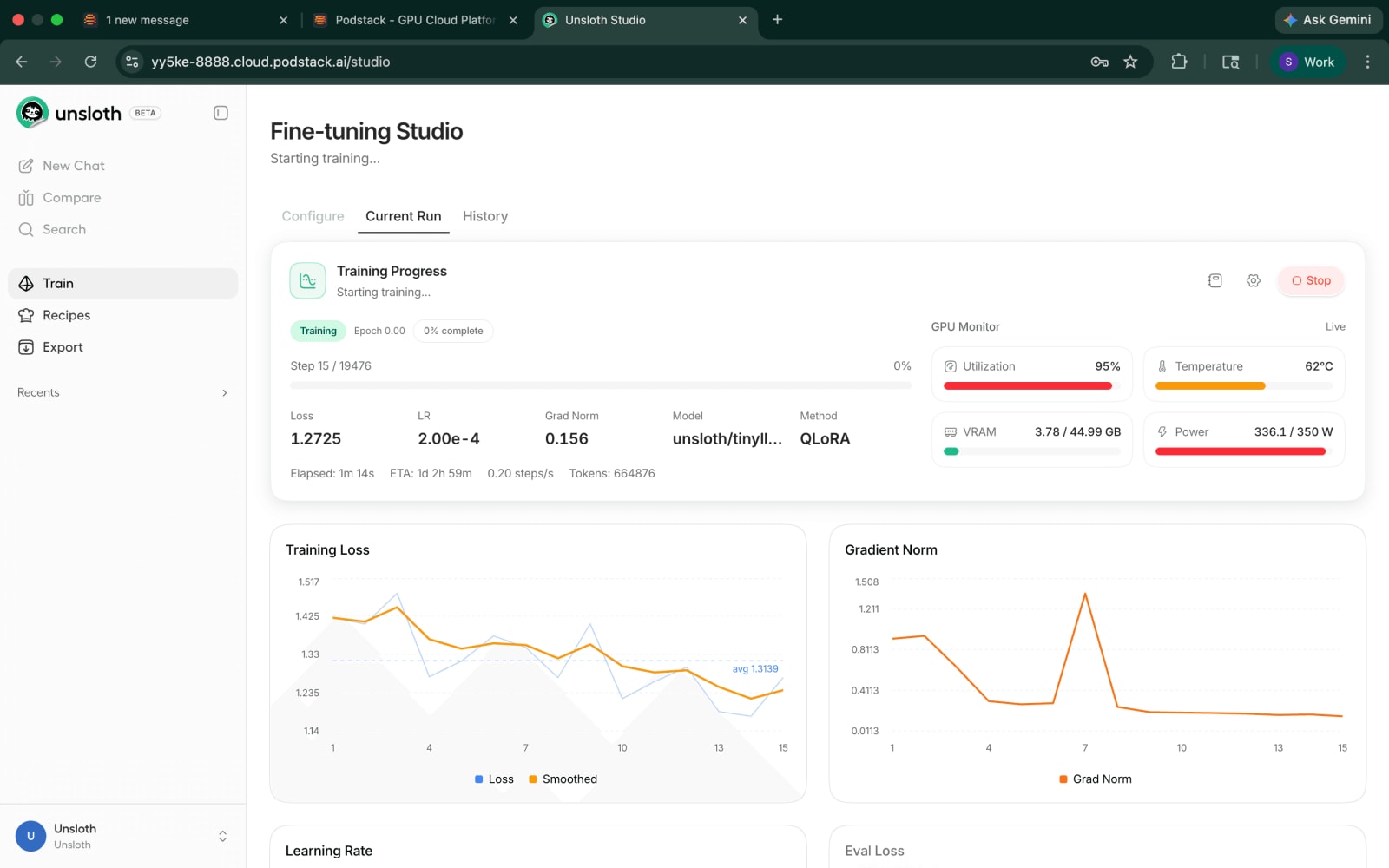
Click Start Training. Studio switches to the Current Run tab and the dashboard goes live.
Across the top, you'll see the live training stats:
- Step counter showing current step out of total (e.g., Step 15 / 19476)
- Loss - the training loss for the current batch
- LR - current learning rate
- Grad Norm - gradient magnitude after clipping
- Model and Method for reference
- Throughput - steps per second and total tokens processed
- ETA - estimated time remaining
Below that are four real-time charts: Training Loss, Gradient Norm, Learning Rate schedule, and Eval Loss.
On the right is the GPU Monitor, which shows live values for utilization, VRAM usage, temperature, and power draw. After a minute of training on the L40S, you should expect to see something like:
- Utilization: 95–100% - the GPU is the bottleneck, which is what you want
- VRAM: ~4 / 45 GB for TinyLlama in 4-bit (you have plenty of headroom for larger models or batch sizes)
- Temperature: 60–75°C - normal operating range
- Power: 320–340 / 350 W - near the power cap, indicating the kernels are fully loaded
If utilization is sitting at 40%, your dataloader is the bottleneck - increase the number of workers or batch size. If VRAM is at 95%, you're one OOM crash away from a failed run - reduce batch size or gradient accumulation.
What a Healthy Loss Curve Looks Like
For a healthy QLoRA run, you should see:
- Training loss trending down smoothly. For TinyLlama on UltraChat, expect to start around 1.4–1.5 and drop to 1.2–1.3 within the first 50 steps, then continue declining slowly.
- Gradient norm stable in the 0.1–0.5 range, with occasional spikes that get clipped. Persistent climbing grad norm means the run is diverging — stop and lower the learning rate.
- Learning rate following whatever schedule you configured (linear warmup then cosine decay by default).
- Eval loss tracking training loss with a small gap. A growing gap means overfitting; if it appears, stop early or reduce epochs.
Step 5 — Iterating, Comparing, and Exporting
Long fine-tuning runs are usually wasteful. The honest workflow is:
- Subsample your dataset to 5,000–20,000 examples
- Train for 30–60 minutes
- Evaluate the result in Studio's chat interface (left sidebar → New Chat)
- If the model behaves as you want, scale up to the full dataset
Studio's Recipes tab (left sidebar) lets you save configurations and re-run them later - useful for hyperparameter sweeps. The Compare tab lets you diff two runs side by side, which is far easier than digging through Weights & Biases logs.
When you're happy with a run, go to Export. You have three options:
- Push to Hugging Face Hub - uploads your adapter to a private or public repo
- Save as GGUF - quantizes the merged model for use with llama.cpp and Ollama
- Merge LoRA into base - produces a standalone fine-tuned model in safetensors format
For most production deployments, GGUF is what you want - it runs efficiently on CPUs and consumer GPUs.
Conclusion
In this tutorial, you deployed Unsloth Studio on a Podstack GPU pod, configured a QLoRA fine-tuning run on TinyLlama, and learned how to read the Studio dashboard to evaluate training health. You also saw how to iterate on runs, compare configurations, and export your fine-tuned model.
The broader takeaway: LLM fine-tuning has gone from a multi-day infrastructure project to a workflow you can complete in an afternoon. Unsloth made the kernels fast, QLoRA made the memory cheap, pre-quantized models made setup trivial, and Studio removed the training script entirely. Paired with per-minute GPU pricing on Podstack, the cost of trying a fine-tuning idea is now small enough that the only real bottleneck is whether you have a dataset worth training on.
Ready to train your own model? Head to https://podstack.ai - claim your joining bonus, spin up an Unsloth Studio instance using our one-click template, and you'll be fine-tuning within seconds.
For deeper exploration, see:
- Unsloth documentation for advanced configuration and supported models
2. QLoRA paper for the theoretical background on 4-bit fine-tuning
3. Hugging Face datasets hub for finding training data

Saurav Kumar · Founder
Saurav leads Podstack's vision and strategy, driving the company's mission to make GPU cloud infrastructure accessible to every ML team. With deep experience in cloud computing, infrastructure engineering, and business operations, he oversees product direction, partnerships, and company growth. His passion for democratising AI compute powers Podstack's commitment to delivering high-performance GPU resources at competitive pricing.
Related posts
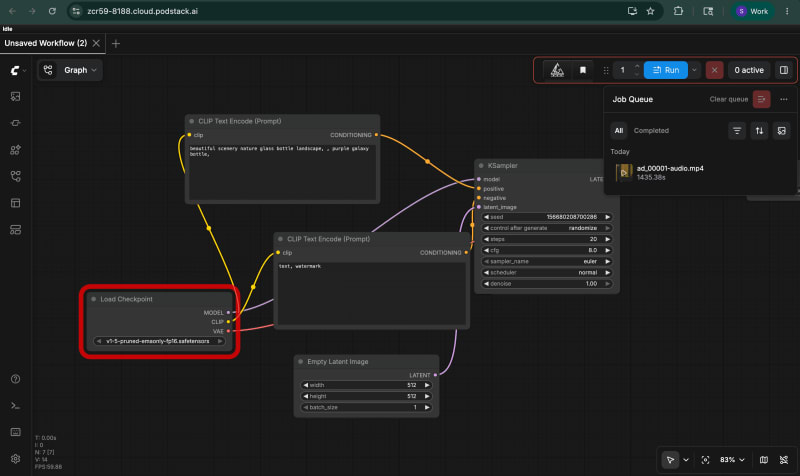
How to Generate Multilingual Video Ads with ComfyUI, Wan 2.2, and Sarvam AI
Turn a single English brand prompt into a 30-second vertical video ad in six Indian languages. This tutorial wires ComfyUI, Wan 2.2 video diffusion, and Sarvam AI's Indic LLM and TTS into one reproducible pipeline.
How To Blur Faces in Videos Using a Jupyter Notebook on Podstack
Anonymise faces in 550 videos with MTCNN and OpenCV on a Podstack GPU pod. This Jupyter notebook tutorial streams WebVid-10M, detects every face, applies Gaussian blur, and zips the output — 171,480 faces processed in ~92 minutes.

Is AI Infrastructure the New EV - Already Obsolete?
AI hardware generations turn over every 18 months. But the real risk isn't that the chips stop working - it's that the economics shift underneath you before your depreciation schedule catches up.